Electronic Payments in D365 F&O
- Electronic Payments in D365 F&O
- Electronic payments are commonly used across the world, let’s see how we can configure the electronic payments in D365 F&O.
- There are couple of setups that are required to generate electronic payments and send it to bank via email or other Methods.
Configure Bank accounts:
Go to Cash & Bank.
Click on create new account.
Create a new Bank account with mandatory fields such Company ID, Routing number, Bank account Number, IBN etc.
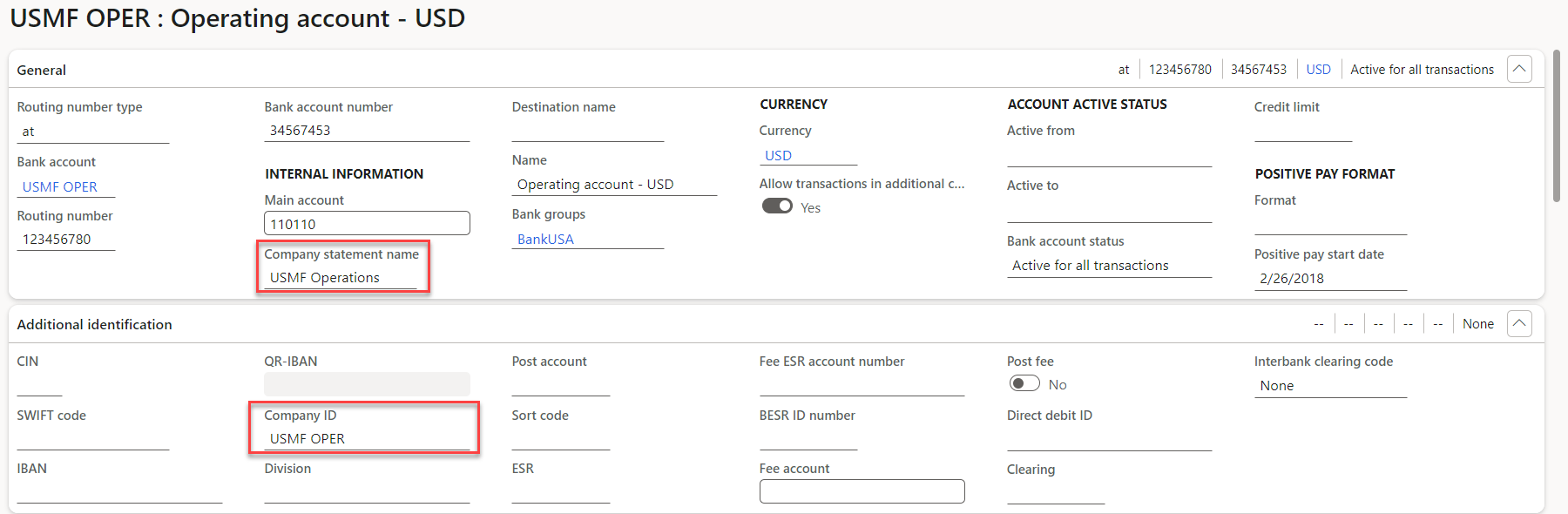
- NOTE: Company statement name can be added if the region is set to USA.
- After That navigate to the accounts payable > Payment setup> Method of payment.
Method Of payment
- Create a new payment account and select the Payment type as electronic.
- Set the payment status “At which status you want to post the payment journals”
- If the status is set to be sent only the Journal can be posted if the status is sent.

- Below you can see the File formats that will be used to send the information to the bank.
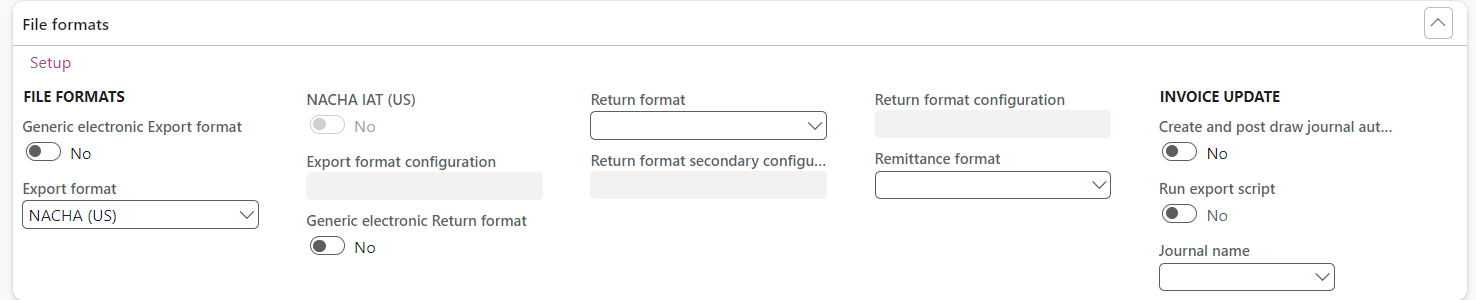
- Here under the Setup, you can select the formats that will be used.
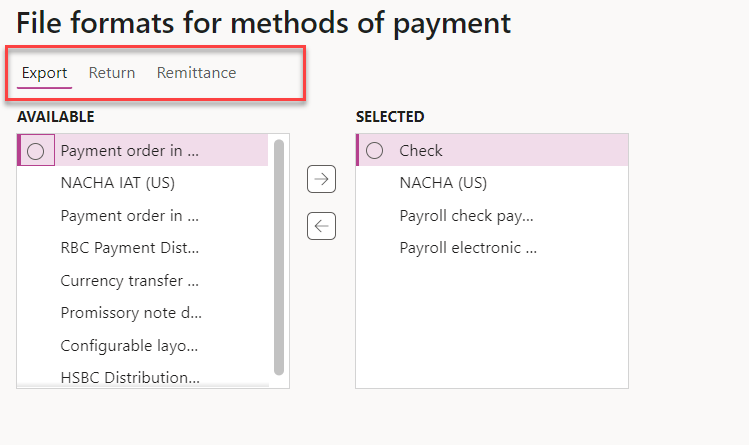
Export:
By selecting the format file Dynamics 365 Finance generates export file per specification to be sent to the bank when the payment is generated. This file will include detail information for payment needs to be paid to vendors.
As part of the vendor setup, you need to add vendor’s bank information, so the export file has all the information necessary for your company’s bank, such as when and how much to which bank needs to be paid.
Return:
This is the format that the bank will send you once received the exported file generated by Dynamics 365 Finance. The return file either shows that all information is valid or shows discrepancies, such as wrong bank account information of your vendor.
Remittance:
Once your bank pays the payment via a transfer of funds to your vendor’s bank, it generates the proof of payment which is called remittance. This file will be sent to you by your bank which can be sent to your vendor upon request or can be setup to be sent automatically.
We recommend you use the electronic reporting instead of using the file formats. You can enable Generic electronic Return format option to instead of the return, remittance and export formats benefit from electronic reporting feature on Dynamics 365 Finance.

Here you can set up the Export format that will be used to send the payments information to the bank.
If you want to use the electronic formats as per the specified formats you can use the generic electronic formats and can design as per the requirement.
Vendor Bank Information:
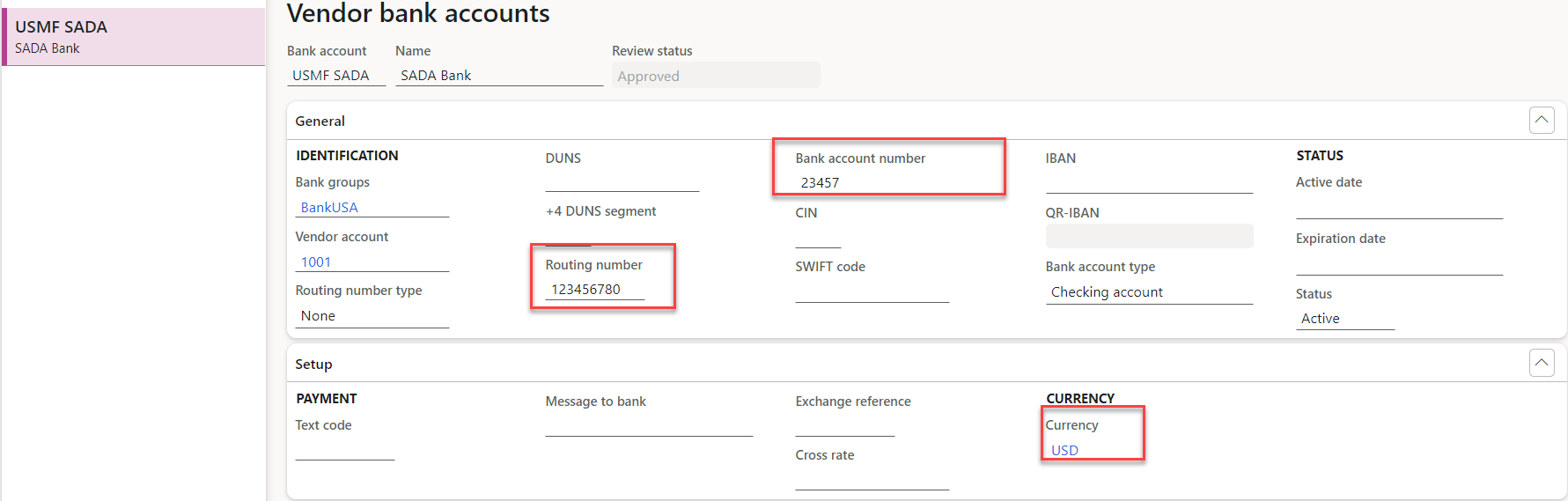
Vendor Bank Information is mandatory to setup otherwise system will not generate the payments as required.
GO to the AP > Vendors > All vendors
Select the vendor account
Click on setup tab (Bank account)
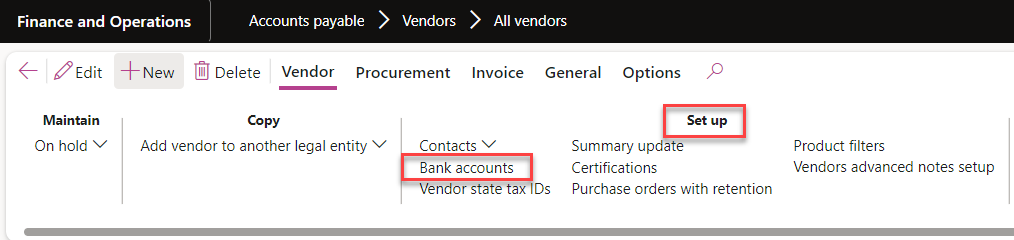
Setup all the information that is required for the vendor bank account.
Now go back and attach this bank account as a default for the vendor bank account on payment tab
Select the method of payment.
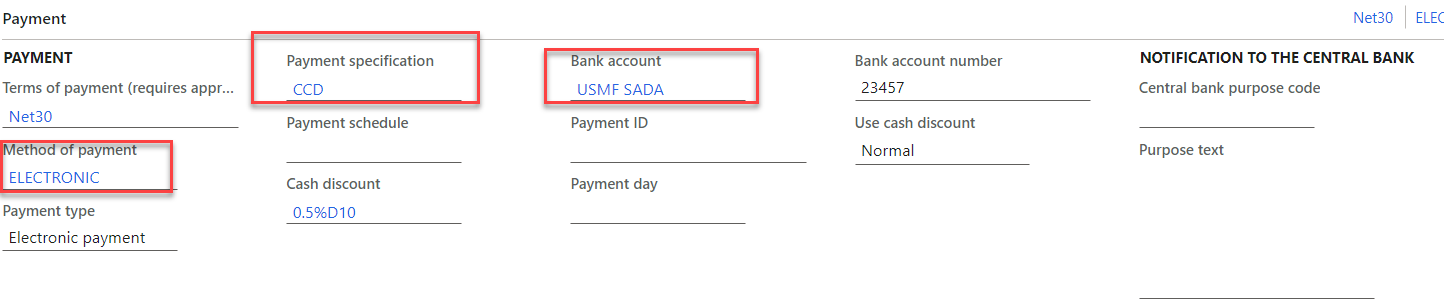
You can also specify the payment specification that tells what type of payment transaction this is.
CCD stands for Cash Concentration and disbursement – Used to pay or collect from other corporate (business) accounts. For example: Vendor payment to businesses
PPD- Prearranged Payment and Deposit – Used to pay or collect from personal (consumer) accounts.
Generate Payments:
Go the accounts payable > Select Payments > Vendor payment Journal.
Select the vendor account.
Settle transaction and generate payment.

Method of payment will come automatically from the vendor master data.
Click on generate payment.
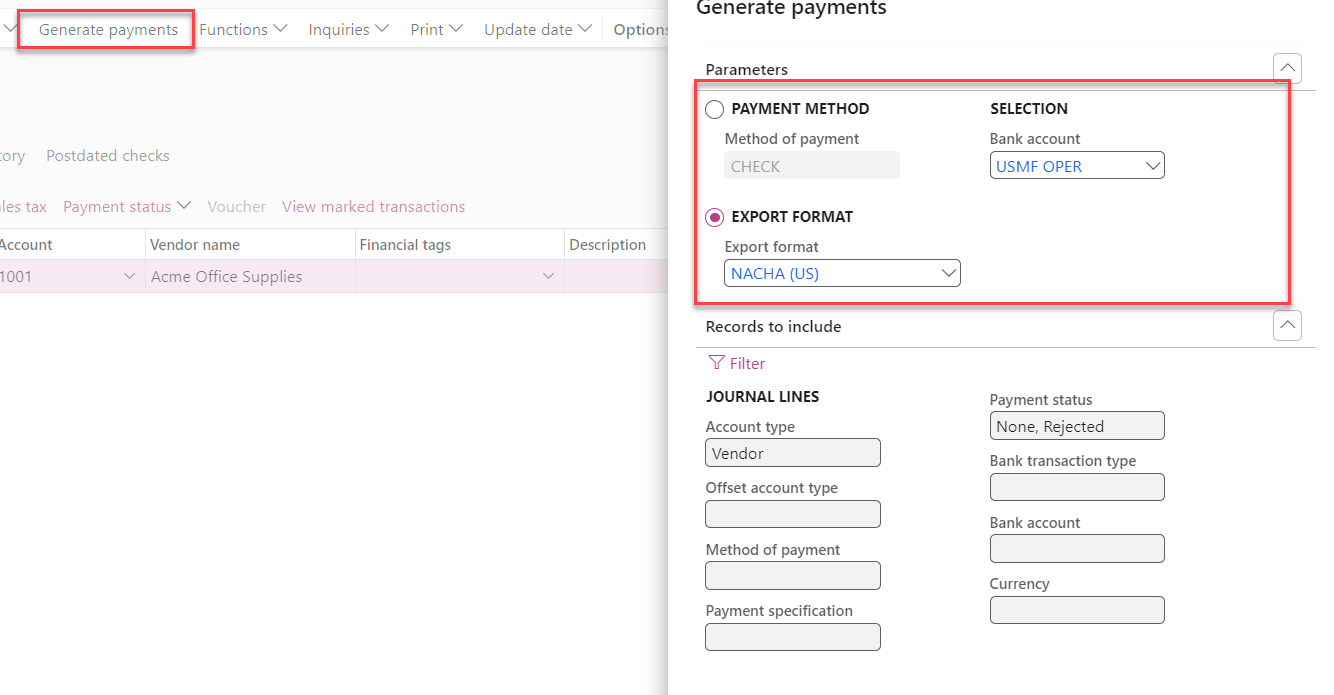
Click ok.
File will be generated that be sent to back using the Print management framework.

Happy learning.
Salman Ahmad
Senior Functional Consultant F&O (Finance, PMA, SCM, WMS)
Dynamics Solutions & Technology